Menu Reference
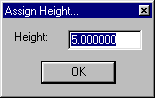
Ocad -> Set Contour Height
Ocad -> Delete Selected ElementsRemove the selected elements from the conversion. Contours without heights are ignored, but other things (like streams or rocks) are used regardless. This is useful for example if someone used roads as the magnetic north lines in the ocad map (this is actually why I put this feature in there). If you leave them there, it will convert lots of long north-south roads into the map, which isn't what you want. Just select and delete them. Also useful to delete all the elements that show up in the legend or any map formatting (shaded borders, etc...).
Ocad -> drag mouse to "push" heights up
|
|
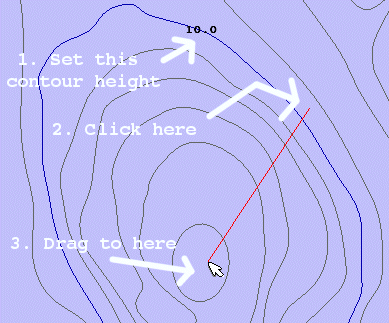
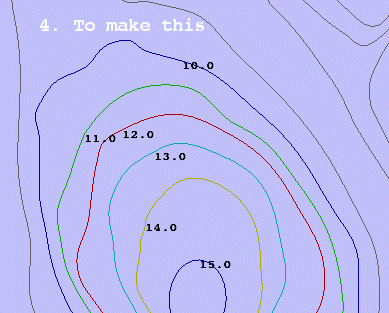
These don't do anything, they're just there to remind you. Once you have at least one contour height set, you can set adjacent heights much faster by left-clicking and dragging the mouse. The first contour (with a height value) that it crosses will be the starting height, and it will set all other contours in increasing (or decreasing) order. This is a lot faster than manually typing in heights. Holding down the shift key while you click and drag will make the heights go in decreasing order. |
|
|
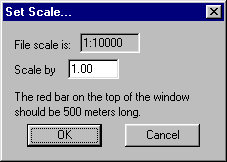
Scale the map. It should get this right from the file, but if not, or if the scale is wrong in OCAD, you can change it here. The red line at the top of the view window should be 500 meters long, so just guess at it until its correct. |
|
This starts the conversion process. Make sure you have all the contours height values set (non-set ones
are ignored), all the water feature height values set (non-set ones default to 10), and you've removed any
extra symbols you don't want converted.
This checks all the possible element types at the bottom of the menu.
Selecting one of these will toggle the element set's visibility.
For example to see only the contours, select "Show None", then "Show Contours".